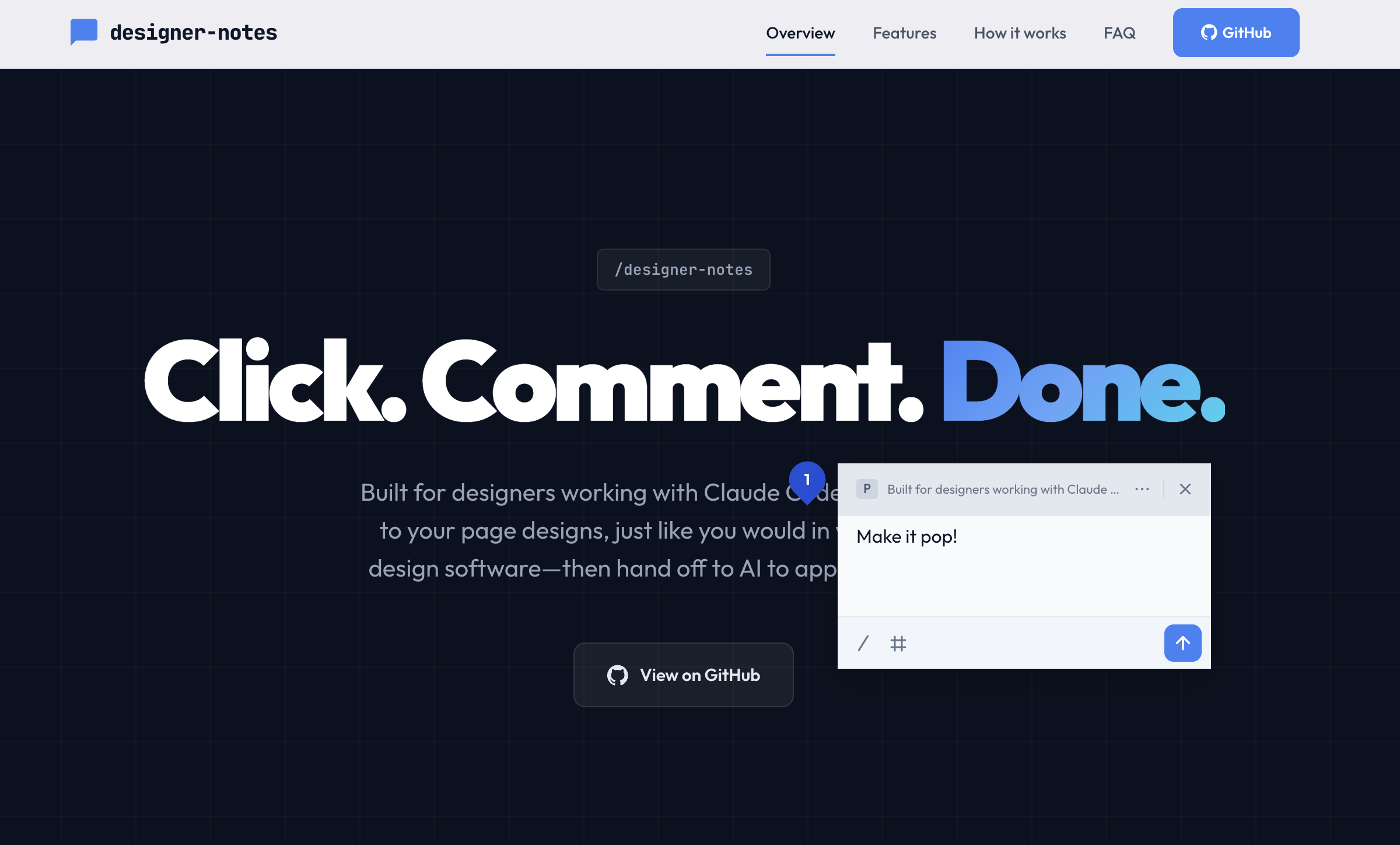
Click. Comment. Done.
Built for designers working with Claude Code. Pin comments to your page designs, just like you would in your favourite design software—then hand off to AI to apply the changes.
Features
Annotate design feedback in the browser, then hand-off for implementation.
Stop wasting time explaining how to fix design issues one-by-one. Designer Notes provides a familiar and more efficient workflow for sharing design feedback with AI.
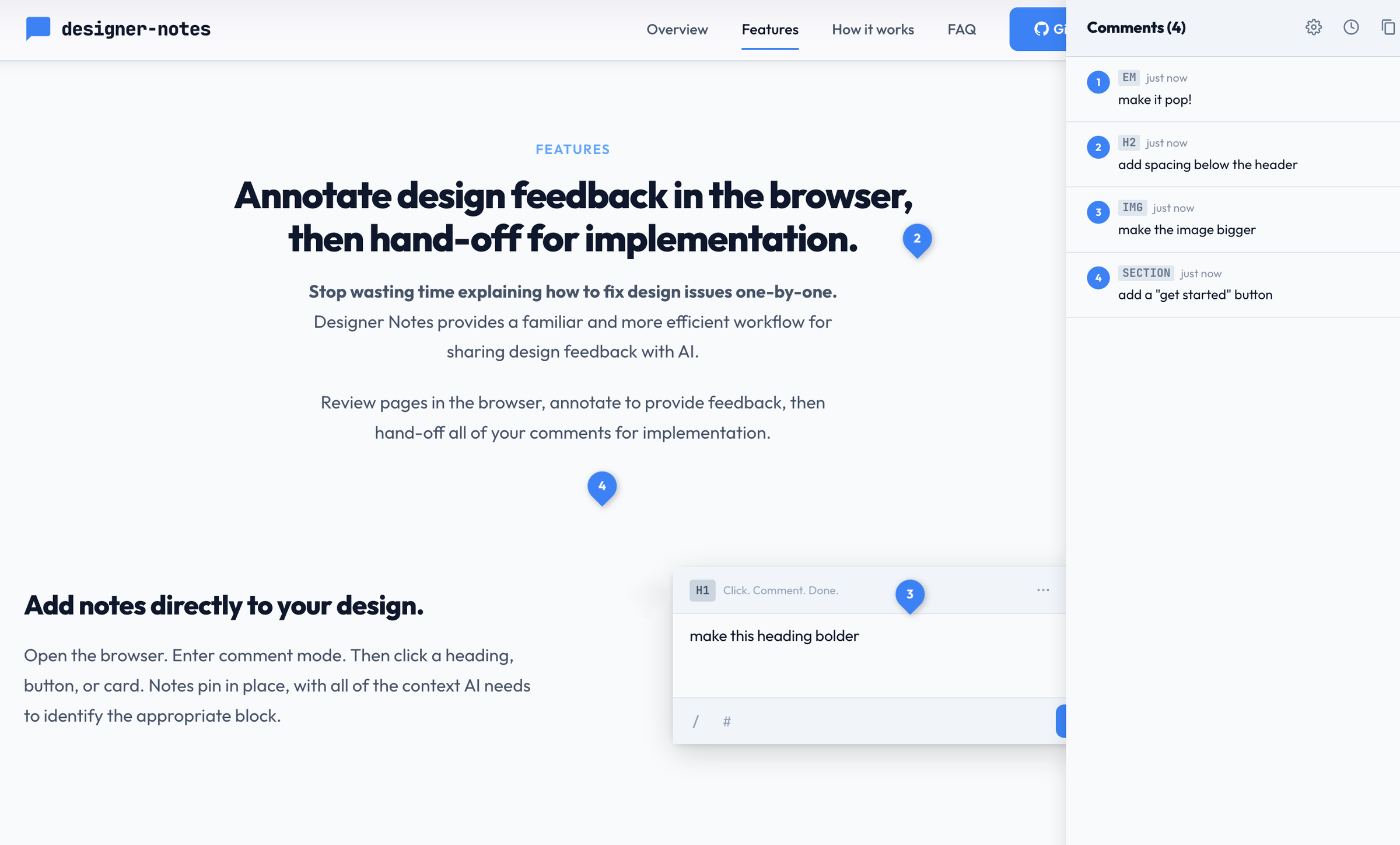
Review pages in the browser, annotate to provide feedback, then hand-off all of your comments for implementation.
Add notes directly to your design.
Open the browser. Enter comment mode. Then click a heading, button, or card. Notes pin in place, with all of the context AI needs to identify the appropriate block.
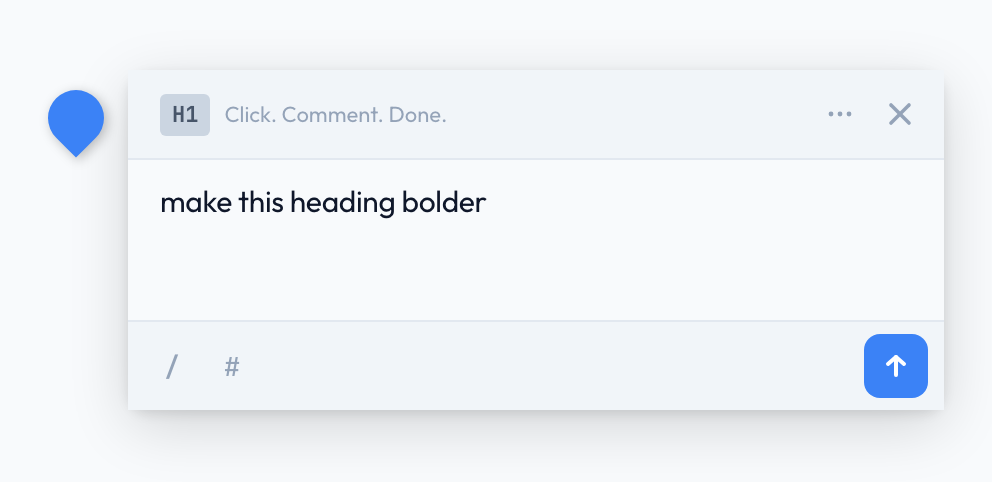
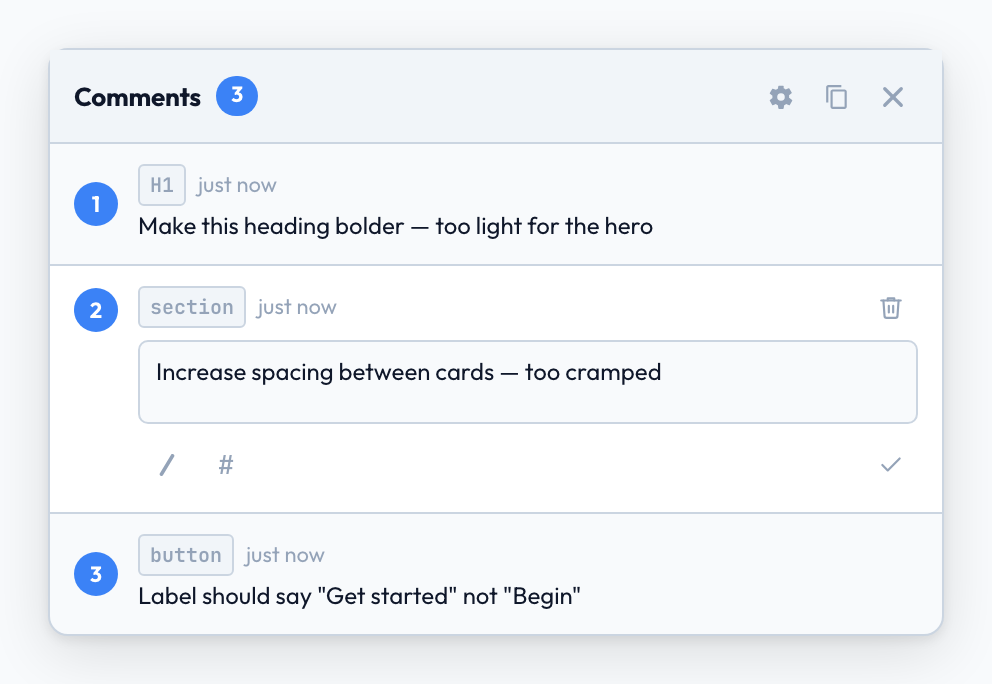
Submit multiple comments per review.
Leave comments across the whole page (or multiple pages). When you're done, just type /submit-feedback and Claude will jump into action implementing all of your changes.
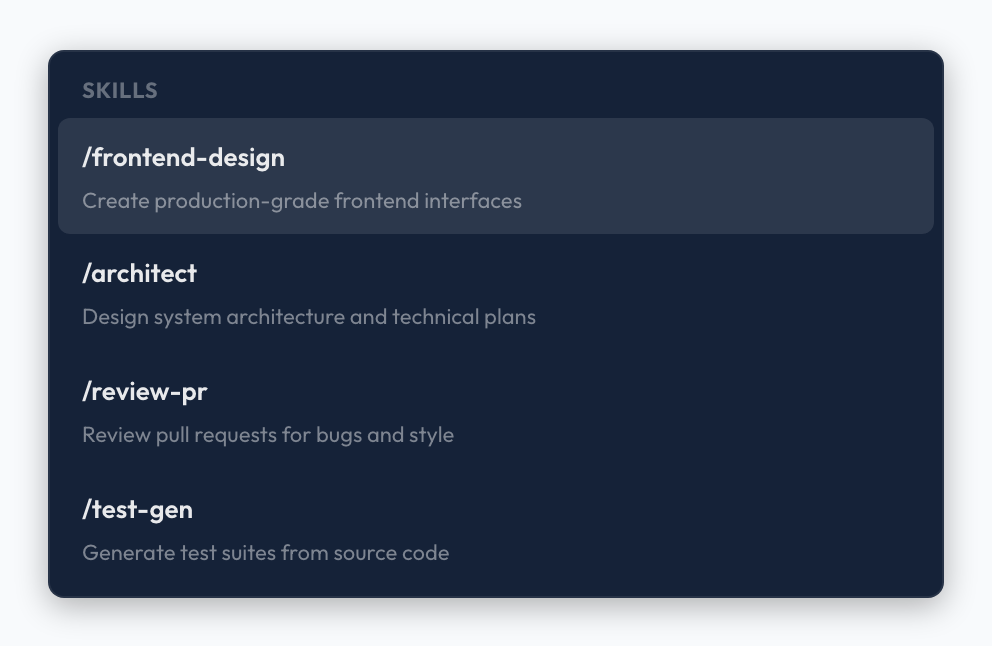
Bring all your existing skills.
Control how Claude implements your feedback by adding /skill to any comment. Or set model and effort with #hashtag commands.
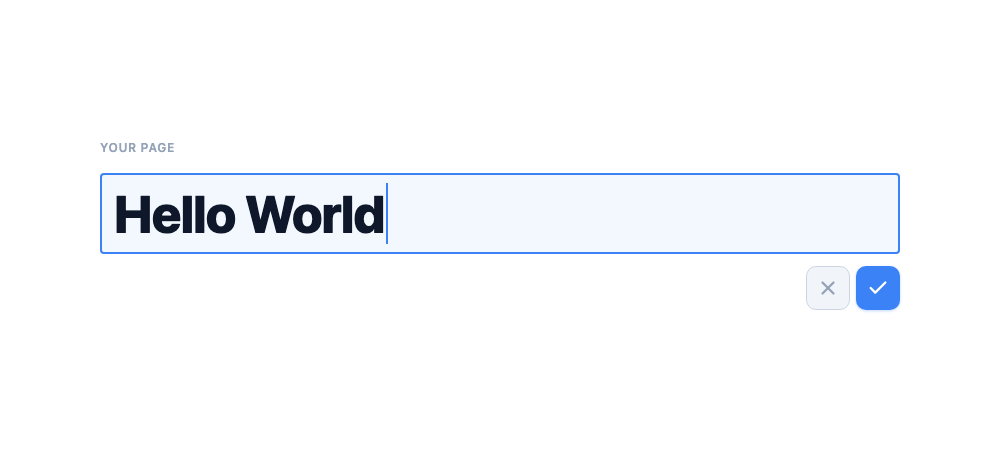
Edit text directly.
Writing copy? Click it and fix it. Text edit mode lets you rewrite headings, labels, and body copy right in the browser. See your changes with styling applied, exactly as it appears to users.
One command and you're done.
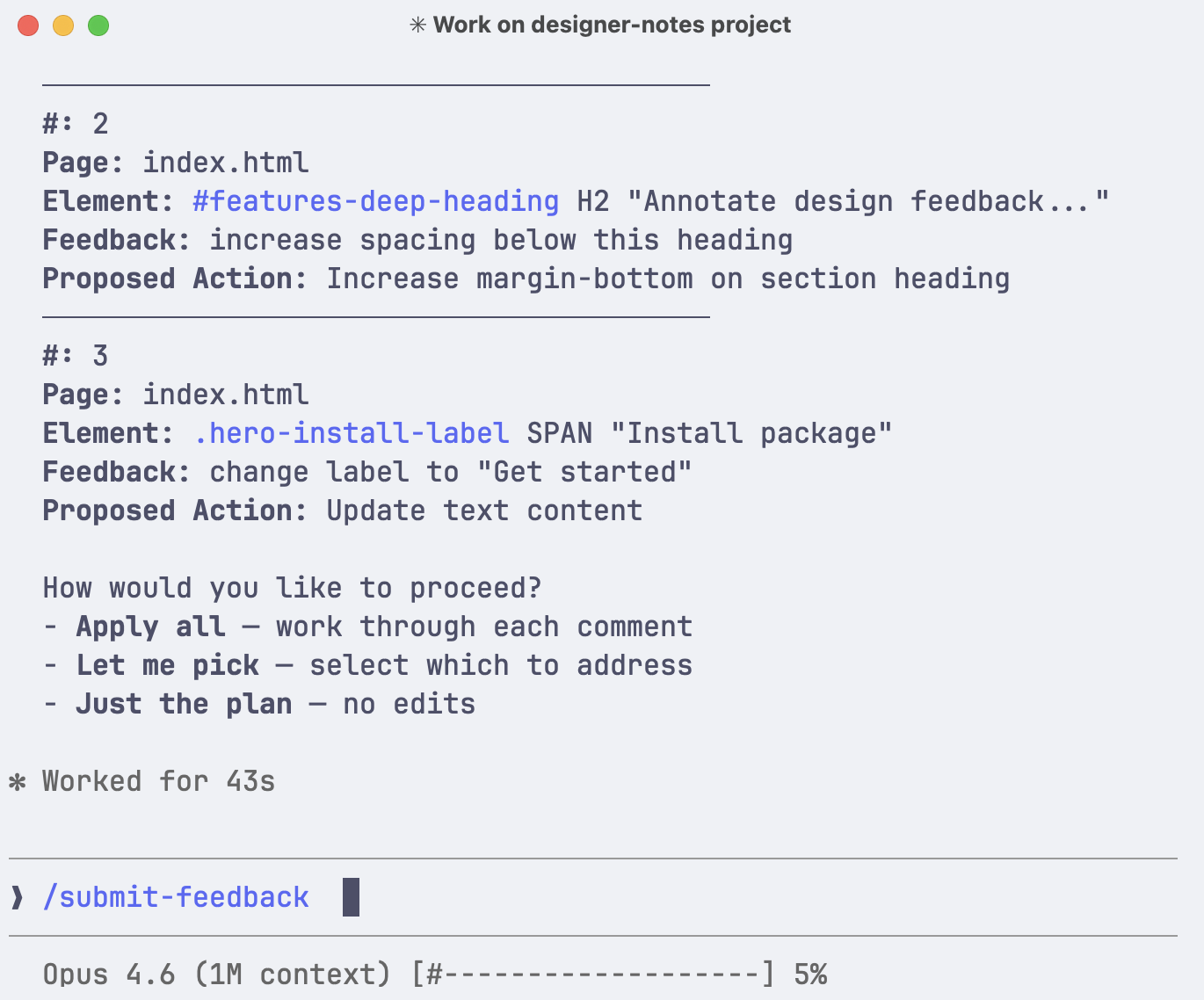
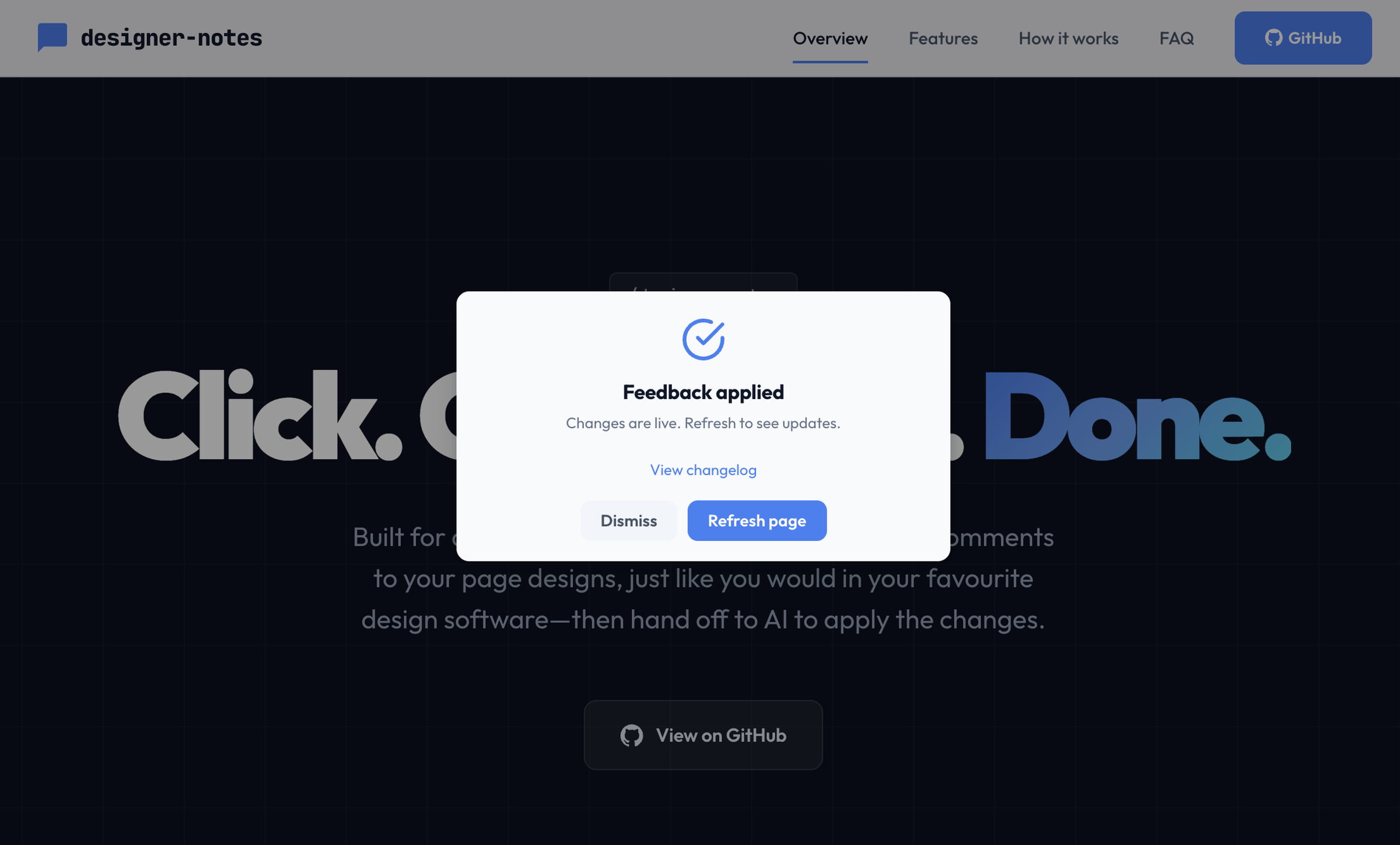
Enter /submit-feedback into the terminal, then watch agents spin into action reading your comments and committing them to code.
How it works
Under the hood.
The /designer-notes skill sets up your files with a javascript embed. Then open your page in the browser to add feedback with a familiar commenting interface.
Each note is compiled into a structured markdown file with element selectors and position data so Claude knows exactly which elements you're referring to.
When you run /submit-feedback, Claude reads that file and applies each change in code.
$ npx designer-notes
$ /designer-notes
Wire it up
One slash command adds the script to your page and starts the dev server.
/designer-notes
Leave your notes
Review and add comments in the browser, just like your favourite design software.
Submit feedback
Claude reviews your notes, reads the positioning data, and addresses each comment.
/submit-feedback
Frequently asked questions
How do I get started?
Download the files with npx designer-notes then use /designer-notes in Claude Code to setup your project. The skill adds a javascript embed, starts a dev server, and opens your page in the browser. From there, press C to start adding comments.
What frameworks does it work with?
Any HTML page. The script reads the live DOM — it doesn't care if the page was built with React, Vue, Svelte, or plain HTML. The CSS selectors reference the rendered output.
Can I provide multiple comments at once?
Yes, that's the whole point. Give all your feedback in one review session, then submit — just like a design review. The skill will read all your feedback, and even use multiple agents where possible to speed up output.
Why do I need the dev server?
The dev server helps to provide a commenting interface, as well as write access for storing comments. It also lets you provide feedback across multiple pages.
Will it interfere with my page's styles?
No. All CSS uses .dn-* class prefixes and [data-designer-notes] attributes. Nothing leaks to your page's styles or global scope. A comment button appears in the bottom right for entering comment mode and accessing the comment panel, but can be hidden with ⌘.
Can I control which model processes my comments?
Add #opus, #sonnet, or #haiku to any comment. You can also set a default model in the settings panel. You can use different models for each comment.
Where can I share comments or feedback?
Please submit comments and feedback here with the heading "Designer Notes Feedback". More planned for future releases. Reach out if you'd like to discuss.
Try it on your next project.
Designer notes is a single JavaScript file and two Claude Code skills. Type npx designer-notes into your terminal to get started.